
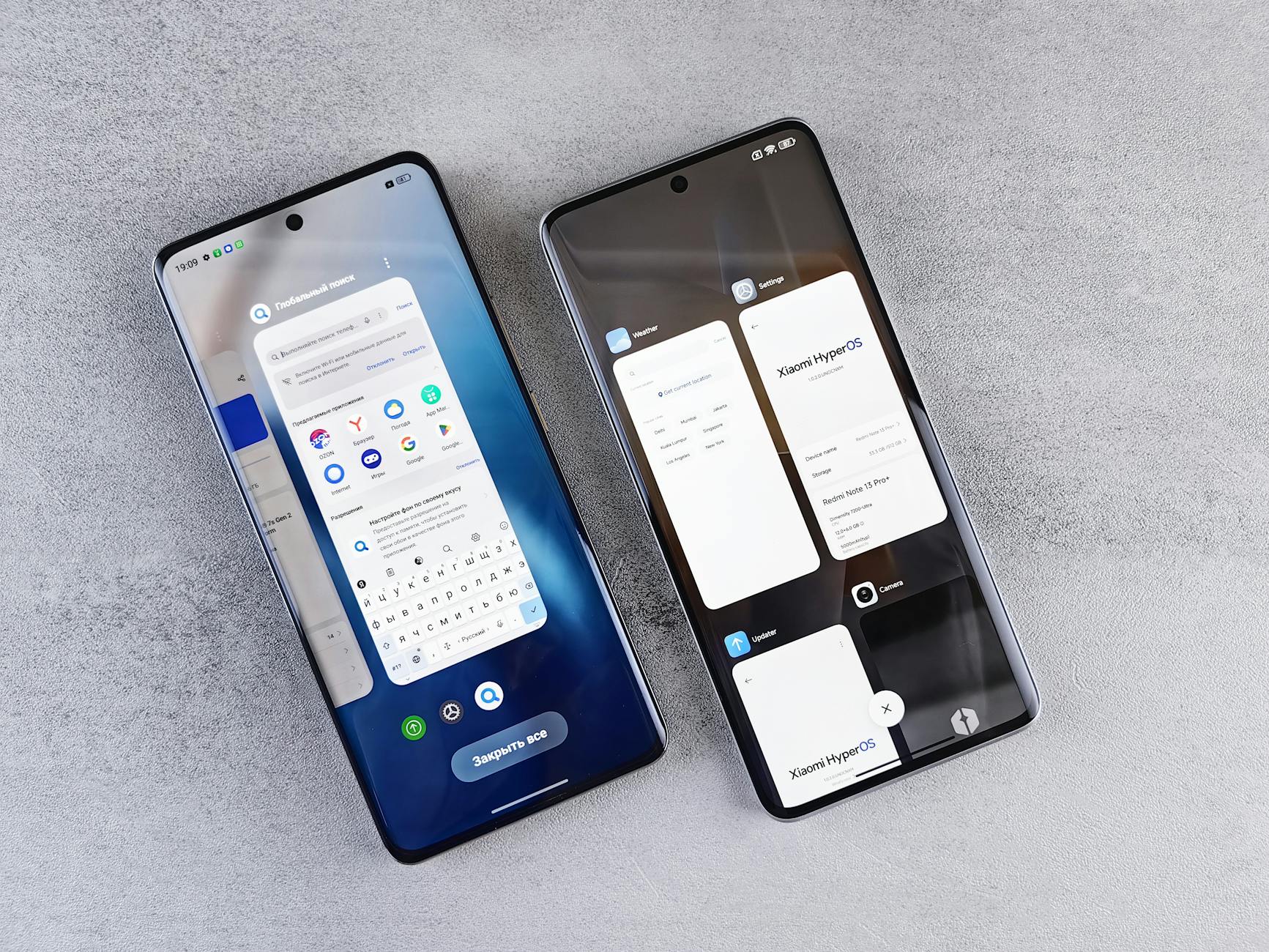
Photo by Andrey Matveev on Pexels
If you’ve ever wondered why your phone slows down after software updates, you’re not alone. Many users notice a lagging experience right after installing the latest OS version, and the culprit is often a mix of hardware constraints, new feature demands, and hidden optimization choices made by manufacturers.
1. New Features Demand More Resources
Every major OS release packs fresh features—augmented reality filters, AI‑powered photo enhancements, and more sophisticated background services. While these additions improve functionality, they also consume additional CPU cycles, RAM, and GPU power. For example, iOS 17 introduced Live Text in videos, a feature that continuously analyzes frames in real time, which can tax older iPhone models with limited neural engines. Similarly, Android 14’s expanded privacy dashboard runs extra processes to monitor app permissions, adding a small but noticeable overhead on devices with modest specs.
Real‑world impact: Users of the 2018 iPhone XR reported a 15‑20% dip in benchmark scores after upgrading from iOS 15 to iOS 17, largely attributed to the new on‑device processing features that the A12 Bionic chip struggles to handle at peak efficiency.
2. Background Processes and Indexing
When you install an update, the system often initiates background tasks such as indexing media files, rebuilding Spotlight or Google Search databases, and recalibrating machine‑learning models. These processes run at a high priority for the first few hours, temporarily hogging CPU and I/O bandwidth. On Android, the “Package Installer” may also verify app signatures and re‑optimize dex files, a process known as “dexopt,” which can slow app launches for days.
Actionable insight: Give your phone a 30‑minute break after updating, and keep it plugged in. This allows background indexing to finish without competing with your active usage, restoring performance more quickly.
3. Storage Fragmentation and Cache Bloat
Software updates often expand system partitions and create new cache directories. If your device is already low on free storage (under 10% is a common threshold), the OS may struggle to allocate contiguous blocks for new data, leading to fragmentation. Fragmented storage forces the flash controller to perform extra read‑write cycles, which slows app loading times. Moreover, leftover caches from previous OS versions can balloon, consuming valuable space and RAM.
Example: A 2020 Samsung Galaxy S20 user reported a 30% slowdown after the Android 13 upgrade until they cleared the “Device care” cache and freed up 2 GB of storage. After the cleanup, benchmark scores returned to pre‑update levels.
Tip: Regularly delete unused apps, clear system caches via the device’s settings, and aim for at least 15% free storage to keep the flash memory operating efficiently.
4. Thermal Management and Battery Health
New OS features can increase power draw, causing the processor to generate more heat. Modern smartphones throttle CPU frequency when temperatures exceed safe limits to protect hardware. If your battery’s health has degraded (common after 2‑3 years of use), it may not sustain the higher power demands, prompting the system to reduce performance to avoid unexpected shutdowns.
Case study: An iPhone 11 with 80% battery health experienced noticeable frame drops after iOS 16.5, whereas the same device with a fresh battery maintained smooth performance. This illustrates how battery wear can amplify the perceived slowdown after updates.
Preventive measure: Monitor battery health in settings, replace aging batteries when capacity falls below 80%, and use the “Low Power Mode” temporarily after major updates to limit background activity.
Frequently Asked Questions
Q1: Will a factory reset fix the slowdown?
In many cases, a factory reset can restore the device to its original performance level because it wipes residual caches, eliminates fragmented storage, and reinstalls system apps cleanly. However, it also erases personal data, so back up everything first. After resetting, reinstall only essential apps to keep the system lean.
Q2: Can I disable new features to regain speed?
Yes. Both iOS and Android allow you to turn off optional features that consume resources. On iOS, you can disable “Background App Refresh,” “Motion & Fitness,” and reduce visual effects under Accessibility. Android users can limit “Adaptive Battery,” disable “Live Wallpapers,” and turn off “Google Assistant” hotword detection. Disabling these can reclaim CPU cycles and improve responsiveness.
Q3: Should I skip updates on older phones?
Skipping updates isn’t advisable for security reasons, as patches fix critical vulnerabilities. Instead, consider installing the update but then applying performance‑tuning steps: clear caches, free storage, and monitor battery health. If the device is extremely old (e.g., more than 5 years), you might explore custom ROMs optimized for legacy hardware, but proceed with caution.
Found this helpful? Share it with your tech-savvy friends! 💻
