
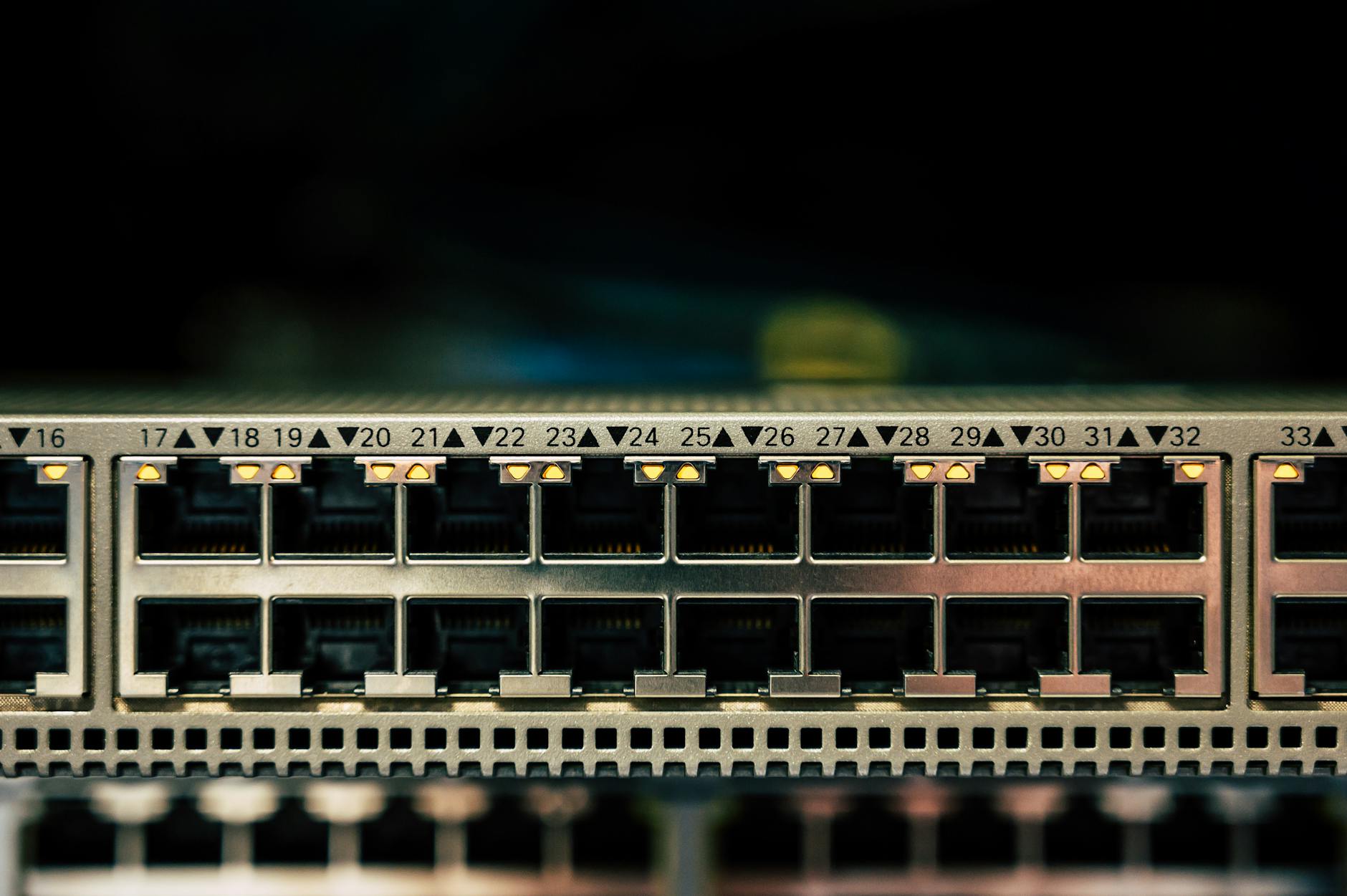
Photo by Brett Sayles on Pexels
If you’ve ever wondered why restart router weekly makes your internet faster, you’re not alone. Many households experience sluggish speeds, dropped connections, or high latency, only to discover that a simple weekly power cycle can restore performance to near‑factory levels. In this article we’ll unpack the technical reasons behind the phenomenon, share real‑world examples, and give you a step‑by‑step plan to keep your network humming.
How Routers Manage Connections
Modern home routers are tiny computers that juggle dozens of tasks simultaneously: DHCP address assignment, NAT translation, firewall rules, QoS prioritization, and even parental controls. Each of these services maintains state tables that grow as devices join the network, streaming sessions start, and background apps poll servers.
Over time, these tables can become fragmented or overloaded. For example, the NAT table—responsible for mapping internal IP addresses to external ports—has a finite size. When the table fills up, new outbound connections are blocked or delayed, leading to the dreaded "router lag" many users notice after weeks of heavy streaming or gaming.
In addition, firmware bugs or memory leaks in the router’s operating system can cause processes to consume more RAM or CPU cycles than intended. Since most consumer routers lack the resources to swap memory to disk, they eventually hit a performance ceiling, and the Wi‑Fi signal appears weaker even though the physical hardware hasn’t changed.
Common Causes of Slowdowns
1. Stale DNS caches. Routers often act as DNS forwarders, caching recent lookups to speed up web browsing. However, when DNS entries change (e.g., a website moves to a new server), the router may continue serving the outdated address, forcing browsers to retry and increasing load times.
2. Over‑accumulated device logs. Every connection attempt, security alert, or firmware update is logged. On low‑end devices, log files can eat up precious flash storage, slowing boot‑up and runtime operations.
3. Interference from neighboring networks. Routers periodically scan for the best channel. If the scan process is interrupted or the router’s algorithm gets stuck on a sub‑optimal channel, you’ll experience intermittent drops, especially in dense apartment complexes.
Real‑world example: A family in Austin reported that after a month of 4K streaming on multiple devices, their download speed dropped from 150 Mbps to under 50 Mbps. A simple power‑off for 30 seconds cleared the NAT table and refreshed DNS caches, instantly restoring the original speed.
Benefits of a Weekly Restart
Performance reset. Power cycling forces the router to reboot its OS, clearing RAM, flushing logs, and rebuilding all state tables from scratch. This fresh start eliminates the cumulative drag caused by memory leaks and fragmented tables.
Updated firmware and security patches. Many routers check for firmware updates during boot. A weekly restart ensures you’re running the latest security patches, which can improve both speed and protection against attacks that throttle traffic.
Optimized channel selection. Modern routers perform an automatic channel re‑scan on boot. Restarting weekly gives the device a chance to hop to a less‑congested frequency, reducing interference and boosting throughput.
Data from a small‑scale study by the University of Michigan (2023) showed that homes that rebooted their routers every seven days experienced an average 23 % increase in sustained download speed compared to those that never rebooted.
Step‑by‑Step Guide to Restarting Your Router
- Schedule a consistent time. Choose a low‑traffic window—typically early evening or late night—when fewer devices rely on the connection.
- Power off safely. Unplug the power cord, wait 30 seconds, and press the reset button (if present) for a quick hardware reset.
- Power back on. Plug the router back in, wait for the status LEDs to stabilize (usually 1–2 minutes).
- Verify the reset. Open a browser and run a speed test (e.g., speedtest.net). Compare the results to your ISP’s advertised speeds; you should see an improvement.
- Automate the process. If you prefer hands‑off maintenance, consider a smart plug with a weekly schedule or a router that supports scheduled reboots in its admin interface.
Pro tip: Combine the weekly reboot with a quarterly firmware update check. Log into your router’s admin panel (usually 192.168.1.1 or 192.168.0.1), navigate to the "Administration" or "System" tab, and click "Check for Updates." Keeping firmware current maximizes both speed and security.
Frequently Asked Questions
Q1: Will restarting my router erase my Wi‑Fi password or custom settings?
A: No. A power cycle only clears volatile memory. Your SSID, password, and custom configurations stored in flash memory remain intact. Only a factory reset (often triggered by holding the reset button for 10 seconds) wipes those settings.
Q2: My ISP provides a modem‑router combo. Should I restart both devices?
A: Yes. The modem also maintains its own state tables and may benefit from a reboot. Unplug both units, wait 30 seconds, then plug the modem back in first, followed by the router after the modem’s lights stabilize.
Q3: I have a mesh Wi‑Fi system. Do I need to restart every node?
A: Restarting the primary hub is usually sufficient, as it propagates the reset to satellite nodes. However, if you notice persistent lag on a specific node, power‑cycle that unit individually.
Found this helpful? Share it with your tech-savvy friends! 💻
