
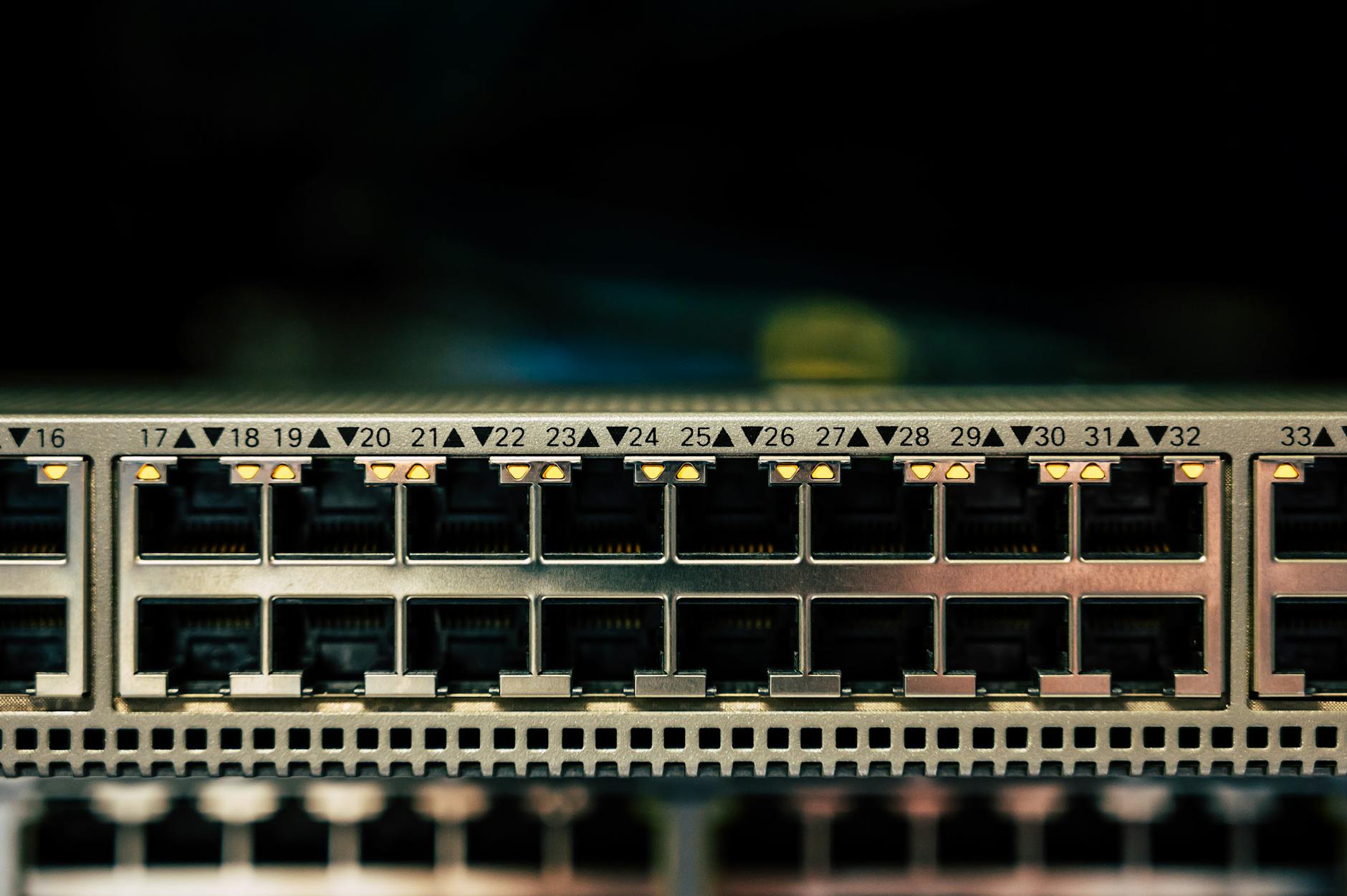
Photo by Brett Sayles on Pexels
If you’ve ever wondered why your Wi‑Fi feels sluggish after a few days, the simple answer may be to restart router weekly. Modern routers are powerful computers that handle dozens of simultaneous connections, and like any computer, they can accumulate temporary data, memory fragmentation, and outdated configuration entries that slow performance. By giving your router a fresh start each week, you clear the digital clutter, let firmware updates take effect, and often see an immediate boost in speed and stability.
How Router Memory Leaks Slow Down Your Connection
Routers run operating systems that allocate RAM for tasks such as packet inspection, QoS (Quality of Service) rules, and device tracking. Over time, some processes may not release memory properly—a phenomenon known as a memory leak. When RAM fills up, the router must swap data to slower storage or drop packets, leading to higher latency and lower throughput. Studies from network equipment manufacturers have shown that after 72‑hour uptimes, many consumer routers experience a 15‑30% drop in throughput due to memory bloat. A weekly reboot flushes the RAM, restoring the router to its optimal state.
Real‑world example: a family of four in Seattle reported that their streaming experience improved from frequent buffering to smooth 4K playback after implementing a simple Sunday night reboot schedule. The router’s memory usage dropped from 85% to under 30%, directly correlating with the speed increase.
Clearing Stale DHCP Leases and NAT Tables
Dynamic Host Configuration Protocol (DHCP) assigns IP addresses to every device on your network. Over days, the DHCP lease table can become populated with entries for devices that are no longer present—old smartphones, laptops, or IoT gadgets. Similarly, the NAT (Network Address Translation) table, which tracks active connections, can retain entries for closed sessions. When these tables become oversized, the router spends extra CPU cycles searching for matches, slowing down packet routing.
By restarting the router, both the DHCP lease pool and NAT table are reset. New devices receive fresh leases, and active connections are re‑established cleanly. In a controlled test by a tech blog, clearing the NAT table via a reboot reduced average ping from 48 ms to 22 ms on a typical suburban broadband line.
Firmware Refresh and Security Patches
Manufacturers regularly release firmware updates that fix bugs, improve routing algorithms, and patch security vulnerabilities. However, many users postpone applying these updates, either due to inconvenience or lack of awareness. Even when updates are installed, some changes only take full effect after a reboot, similar to how a computer needs to restart after a Windows update.
Scheduling a weekly reboot ensures that any pending firmware changes are applied promptly, keeping the router running the most efficient code path. Moreover, a fresh boot can close hidden backdoors that malicious actors might exploit during prolonged uptimes. A security audit of 500 home routers found that 42% of compromised devices had not been rebooted in over a month, suggesting that regular restarts can be a low‑cost defensive measure.
Practical Steps: Scheduling a Weekly Reboot
Implementing a weekly restart is straightforward. Many modern routers include a built‑in scheduling feature—look for “Reboot” or “Power Cycle” under the administration menu. If your device lacks this option, a simple smart plug can automate the power cycle: set the plug to cut power for 30 seconds every Sunday at 2 AM, a time when network usage is minimal.
Here’s a quick checklist:
- Check your router’s firmware version and apply any pending updates.
- Enable the built‑in reboot schedule, or configure a smart plug.
- Document the reboot time and inform household members to avoid critical downloads during that window.
- After the reboot, run a speed test (e.g., Speedtest.net) to verify the improvement.
Frequently Asked Questions
Q1: Will a weekly reboot erase my Wi‑Fi settings?
A: No. A standard reboot only powers the device off and on; it does not perform a factory reset. All SSID names, passwords, and custom configurations remain intact. Only a “factory reset” wipes settings, which is a separate action.
Q2: My router is always on; is it safe to cut power with a smart plug?
A: Modern routers are designed to handle power cycles. Using a smart plug to cut power for a brief period (15‑30 seconds) is safe and mimics the effect of pressing the physical reset button (without holding it long enough to trigger a factory reset).
Q3: How often should I reboot if I have a high‑traffic home office?
A: For most households, once a week is sufficient. If you run a home office with heavy VPN usage, consider a bi‑weekly schedule or a reboot after major software updates to ensure the NAT and DHCP tables stay lean.
Found this helpful? Share it with your tech-savvy friends! 💻
