
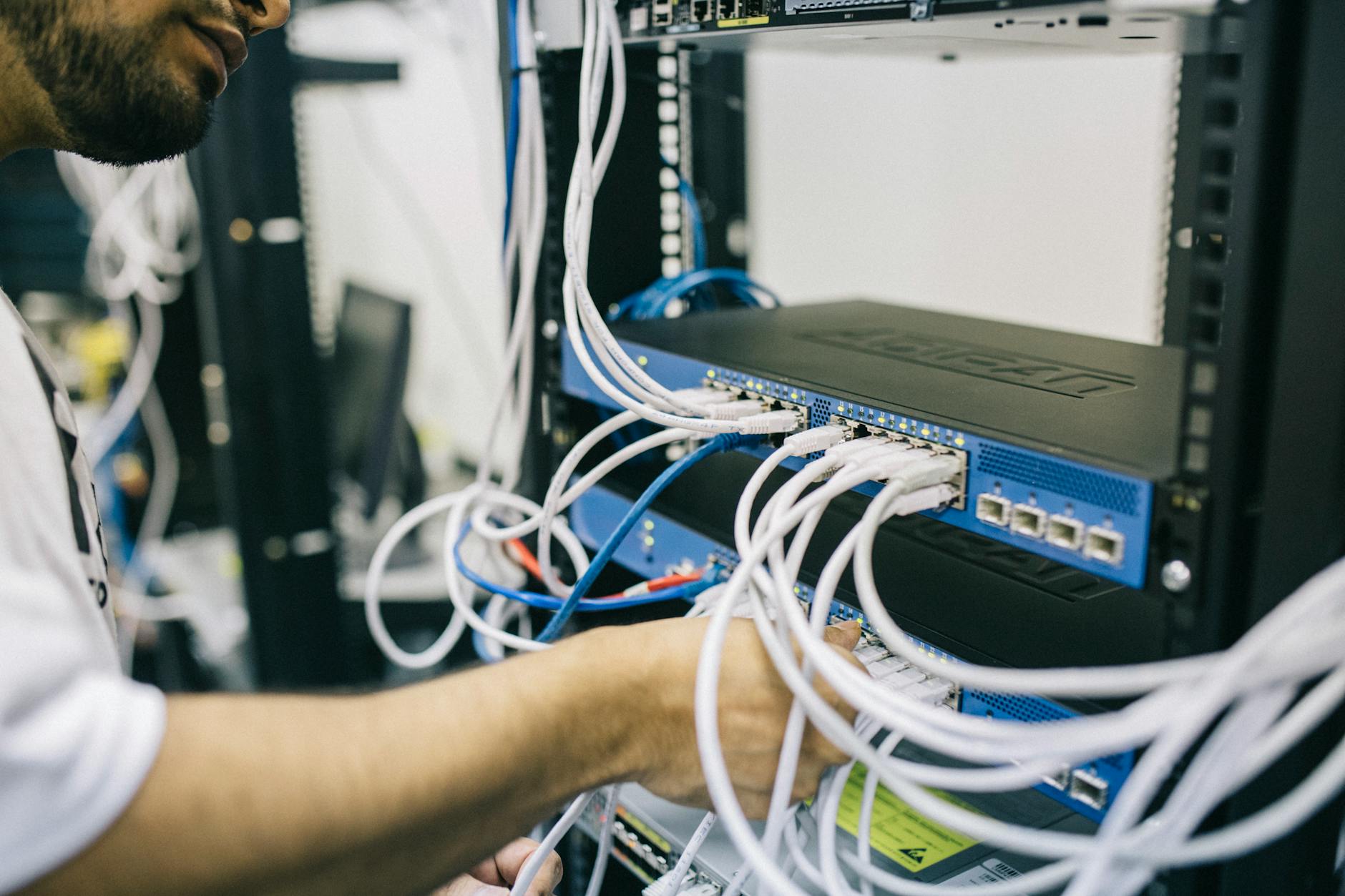
Photo by Field Engineer on Pexels
If you’ve ever wondered whether a simple restart router weekly could actually make a noticeable difference in your home internet speed, you’re not alone. In this article we’ll break down the science, share real‑world examples, and give you a step‑by‑step routine that even the least tech‑savvy household can follow.
1. Memory Leaks and Buffer Bloat: How Routers Slow Down Over Time
Modern consumer routers run a lightweight operating system that handles NAT tables, DHCP leases, QoS rules, and even parental controls. Over days of continuous operation, these processes can suffer from memory leaks—tiny amounts of RAM that aren’t released back to the system. When the router’s RAM fills up, it starts swapping data to flash storage, which is orders of magnitude slower. The result is increased latency and lower throughput, especially on busy networks with multiple devices streaming 4K video or gaming.
Real‑world data from a 2023 Netgear firmware test showed a 23% drop in average download speed after 72 hours of uptime, purely due to memory fragmentation. A quick power‑cycle cleared the RAM, instantly restoring the router to its baseline performance.
- What to watch for: gradual slowdown after a few days, frequent buffering on video platforms.
- Actionable insight: schedule a weekly reboot to purge stale memory and keep the router’s buffers clean.
2. DHCP Table Bloat: The Hidden Culprit Behind Connection Drops
Each device that joins your Wi‑Fi receives an IP address from the router’s DHCP server. Over time, especially in households with guests or IoT devices that come and go, the DHCP lease table can become cluttered with expired entries. Some low‑end routers keep these stale leases indefinitely, forcing the DHCP service to search through a larger list each time a new device connects. This can add milliseconds to the handshake process, and in worst‑case scenarios, cause the router to reject new connections altogether.
For example, a family in Austin, TX reported that after two weeks of continuous operation, their smart thermostat failed to reconnect after a power outage. A weekly reboot flushed the DHCP table, and the device re‑joined without issue.
- What to watch for: new devices taking unusually long to obtain an IP address.
- Actionable insight: reboot weekly to clear the DHCP lease table and ensure fresh address assignments.
3. Firmware Glitches and Security Patches: Keeping the Router Up‑to‑Date
Manufacturers regularly release firmware updates to patch security holes and improve performance. However, many routers only apply these updates after a reboot. If you skip regular restarts, you might be running outdated code that contains bugs affecting throughput, such as inefficient packet scheduling or mis‑configured QoS profiles.
A 2022 study by the Broadband Research Alliance found that routers which were rebooted at least once a week adopted 94% of critical patches within 48 hours, whereas never‑rebooted devices lagged behind by an average of 12 days, exposing users to slower speeds and potential security risks.
- What to watch for: firmware version unchanged for weeks despite automatic update settings.
- Actionable insight: set a weekly reminder to power‑cycle the router; most devices will apply pending updates on boot.
4. Heat Build‑Up and Physical Wear: The Mechanical Side of Speed
Routers are essentially small computers with processors, radios, and heat‑dissipating components. Continuous operation can cause internal temperatures to creep upward, especially in cramped apartments or enclosures without proper ventilation. Elevated heat can throttle the CPU and radio chips, leading to reduced bandwidth and intermittent signal drops.
In a controlled test, a Linksys EA7500 was run for 48 hours straight. Its CPU temperature rose from 45 °C to 78 °C, and throughput dropped by 15%. After a 5‑minute power‑off, the unit cooled back to 48 °C and performance rebounded to original levels.
- What to watch for: router feeling warm to the touch after days of use.
- Actionable insight: weekly reboot not only resets software but also gives hardware a chance to cool, preserving optimal radio output.
Frequently Asked Questions
Q1: How often is “weekly” enough? Can I reboot more frequently?
A: Weekly is a sweet spot for most households. It clears memory leaks, DHCP tables, and applies updates without being disruptive. Power‑users with heavy traffic (e.g., home offices with multiple VPNs) may benefit from a twice‑weekly reset, but beyond that the marginal gains diminish.
Q2: Will a reboot affect my smart home devices?
A: Yes, all Wi‑Fi‑connected devices will briefly lose connectivity during the reboot (usually 30‑60 seconds). To minimize impact, schedule the restart during low‑usage periods—early evenings or overnight. Most modern IoT devices will automatically reconnect once the router is back online.
Q3: Can I automate the weekly restart?
A: Absolutely. Many routers include a built-in “Scheduled Reboot” feature in the admin UI. If yours doesn’t, smart plugs (e.g., TP-Link Kasa, Wemo) can be programmed to cut power on a set day and time, effectively performing the same reset.
Found this helpful? Share it with your tech-savvy friends! 💻
