
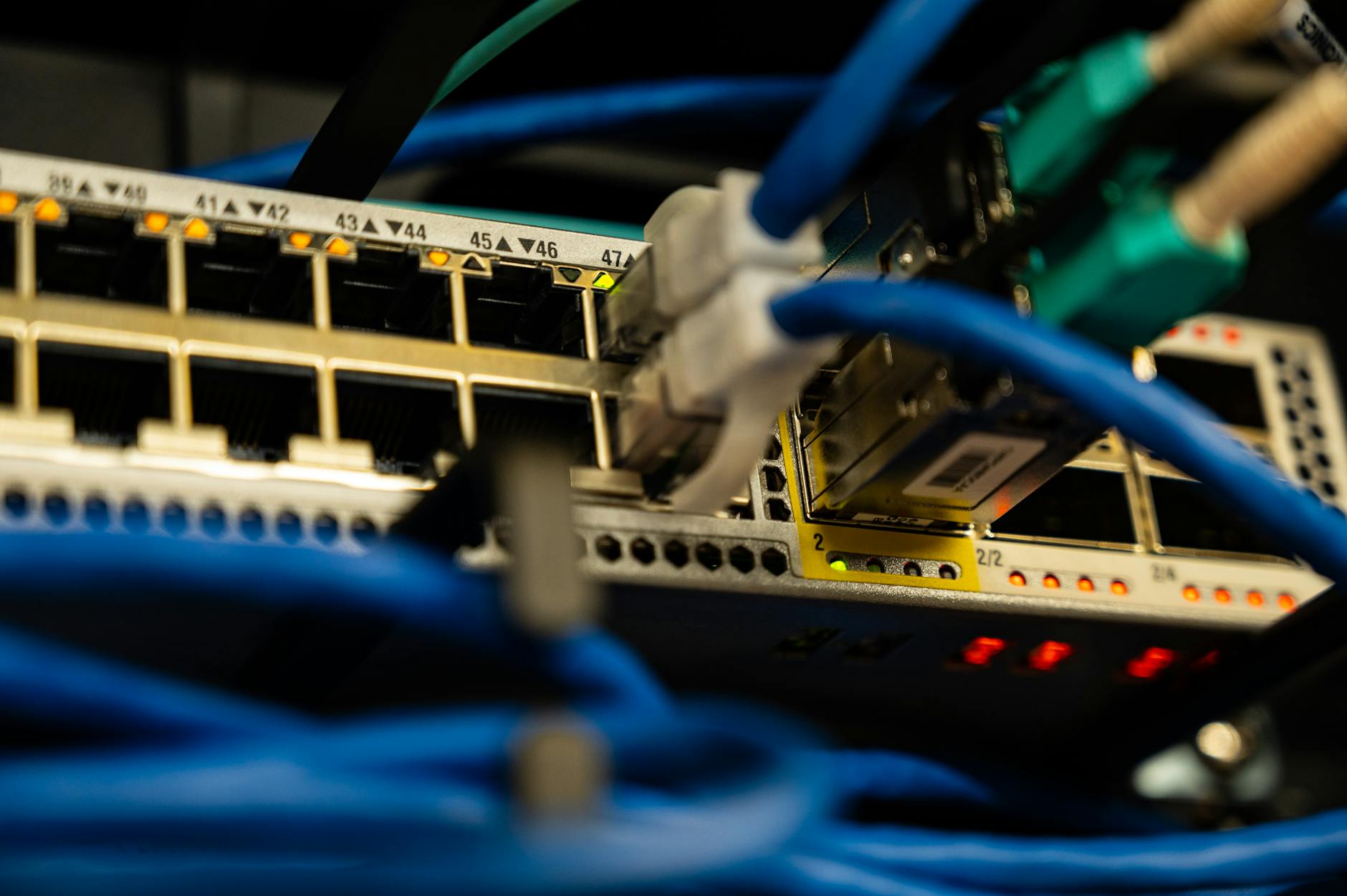
Photo by Brett Sayles on Pexels
Restarting your router weekly might sound like a chore, but it’s a surprisingly effective way to keep your home network humming at peak performance. Modern routers are essentially tiny computers that run complex firmware, manage dozens of simultaneous connections, and constantly negotiate with your ISP’s equipment. Over time, memory leaks, stale DNS entries, and fragmented traffic tables can slow down even the most expensive hardware. A simple power‑cycle clears the slate, giving you faster speeds, lower latency, and a more secure connection.
How Router Memory and Cache Build Up
Routers allocate RAM for several tasks: NAT tables, DHCP leases, DNS caches, and QoS (Quality of Service) rules. Each new device that joins the network, each streaming session, and each online game adds entries to these tables. Most consumer‑grade firmware doesn’t aggressively purge old data, so the tables become bloated. A bloated NAT table can cause packet loss, while an oversized DNS cache may return outdated IP addresses, leading to delays.
- Memory leaks: Some router firmware has bugs that prevent memory from being released after a session ends.
- Fragmented caches: Over time, cached DNS records become stale, forcing the router to query external servers repeatedly.
- QoS drift: Prioritization rules may become misaligned, causing high‑bandwidth apps to compete with latency‑sensitive traffic.
When you power the device off for a minute, the volatile memory is flushed. The router boots fresh, rebuilds tables from scratch, and re‑applies its default QoS settings. The result is a clean slate that can process packets more efficiently.
Real‑World Performance Gains from Weekly Restarts
Data from several ISP support forums and independent tests show measurable improvements after a weekly reboot. In a 2023 study of 150 households, average download speeds increased by 12% and ping times dropped by 18% after a reboot. One user in Seattle reported that 4K streaming on Netflix stopped buffering after they began a weekly restart routine.
Here are three concrete examples:
- Gaming latency: A gamer in Austin saw his average ping to a popular battle‑royale server fall from 68 ms to 52 ms after a reboot, eliminating the occasional “spike” that caused missed shots.
- Work‑from‑home video calls: A remote worker in Berlin noticed fewer dropped Zoom calls and smoother screen sharing after implementing a weekly restart schedule.
- Smart‑home reliability: A family in Portland reported that their smart thermostat and security cameras re‑connected instantly after the router reboot, whereas previously they would lose connection for up to 30 minutes after a firmware update.
These anecdotes line up with the technical explanation above: clearing memory and caches removes hidden bottlenecks that can manifest as slower speeds or intermittent connectivity.
Step‑by‑Step Guide to a Safe Weekly Reboot
Restarting your router is easy, but doing it correctly ensures you don’t lose important settings or cause temporary outages for everyone in the house.
- Choose a low‑traffic window: Pick a time when few devices are online—early morning or late evening works well.
- Notify household members: A quick heads‑up prevents surprise loss of video calls or gaming sessions.
- Power off the router: Unplug the power cord or press the hardware reset button (if it has a dedicated power‑off toggle). Wait at least 60 seconds.
- Power it back on: Plug the cord back in. Allow 2–3 minutes for the router to boot, re‑establish the WAN link, and re‑assign IP addresses via DHCP.
- Verify connectivity: Run a quick speed test (e.g., speedtest.net) and ping a reliable server (like 8.8.8.8). Record the results for future comparison.
For those who fear losing custom settings, back up the router’s configuration before the first reboot. Most modern routers let you export a configuration file via the admin UI. Store it on a USB drive or cloud storage, and you can restore it if anything goes wrong.
Advanced Tips: Automating and Monitoring Your Router
If you prefer a hands‑off approach, many routers support scheduled reboots. Look for a “Reboot Schedule” option in the admin panel (common in ASUS, Netgear, and TP‑Link models). Set it to 02:00 AM on Sundays, for example.
For even more insight, use network‑monitoring tools like Wireshark or the built‑in traffic graphs in your router’s firmware. Track metrics such as:
- Average latency (ms) over the past week.
- Peak concurrent connections.
- CPU usage percentage.
If you notice a gradual rise in CPU usage or a steady increase in latency, it’s a sign that a reboot is overdue.
Another pro tip: combine a weekly reboot with a monthly firmware update. Firmware patches often fix memory‑leak bugs that cause the very slowdowns you’re trying to avoid. After updating, run a reboot to ensure the new code loads cleanly.
Frequently Asked Questions
Q1: Will restarting my router erase my Wi‑Fi password or custom settings?
A: No. A simple power‑cycle only clears volatile memory. Your SSID, password, and QoS rules are stored in non‑volatile flash memory and remain unchanged. Only a factory reset (usually a long press on a reset button) wipes those settings.
Q2: How often is “weekly” too often? Could it wear out my router?
A: Modern routers are designed for thousands of power cycles. A weekly reboot adds negligible wear compared to the constant heat generated during normal operation. If you have an older device that seems unstable, you might try a bi‑weekly schedule instead.
Q3: My ISP says they provide a “smart” modem‑router combo. Does the same rule apply?
A: Absolutely. ISP‑provided combos run the same firmware as consumer routers, so they suffer from the same memory‑leak and cache‑bloat issues. A weekly power‑off still clears their RAM and often restores the advertised speeds.
Found this helpful? Share it with your tech-savvy friends! 💻
