
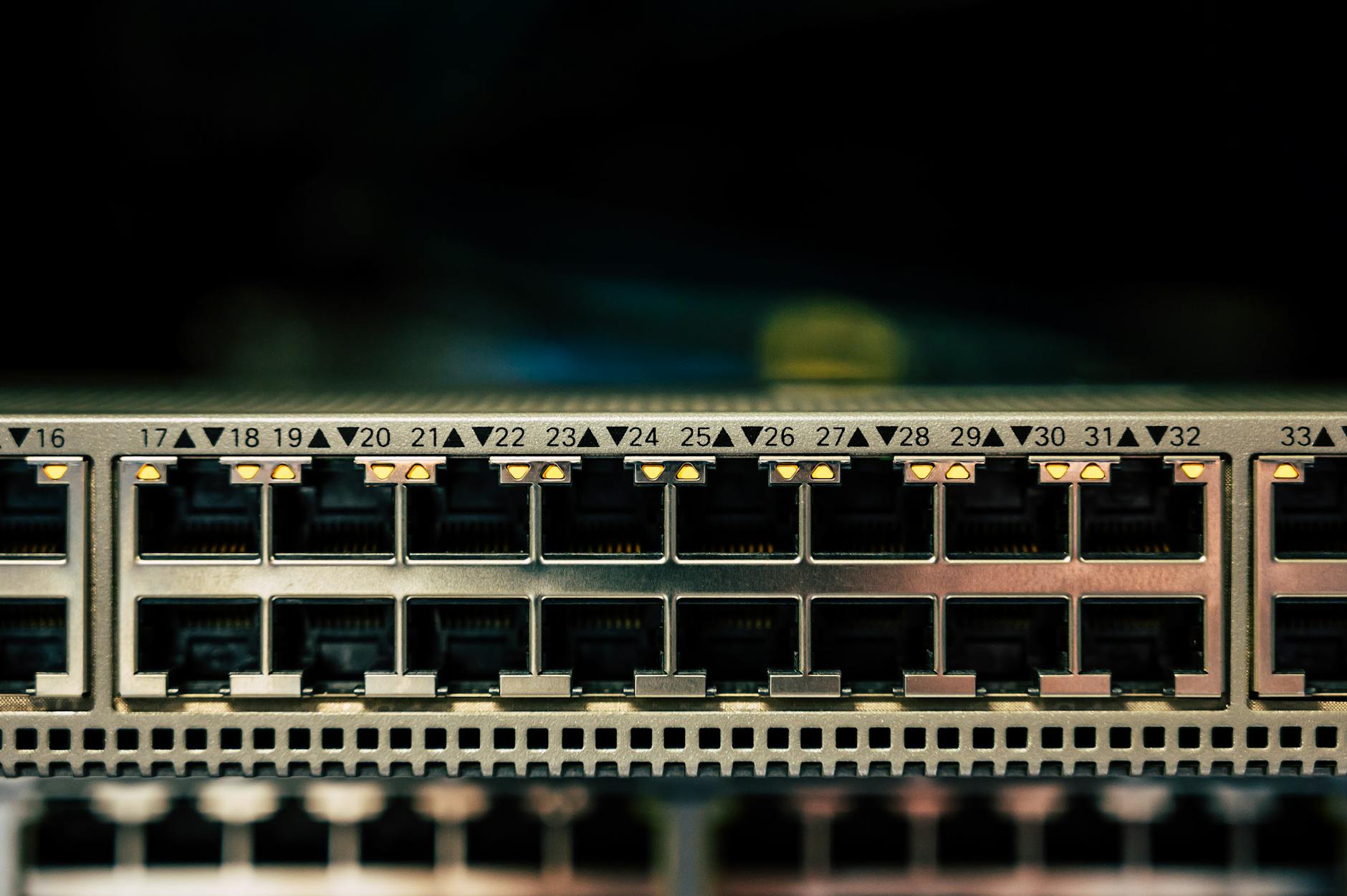
Photo by Brett Sayles on Pexels
restart router weekly is a simple habit that many tech‑savvy households swear by, but why does it actually make a noticeable difference in your day‑to‑day browsing experience? In this article we’ll unpack the engineering behind modern home routers, explore real‑world data, and give you a step‑by‑step plan to keep your connection humming.
1. Memory Leaks and Buffer Bloat – The Silent Speed Killers
Most consumer routers run on Linux‑based firmware that, over time, accumulates temporary data in RAM. Even well‑written code can suffer from tiny memory leaks that, after days of heavy traffic (streaming 4K video, gaming, video calls), start to eat away at the available memory pool. When the router’s RAM is saturated, packet processing slows, leading to higher latency and lower throughput.
A 2022 study by the University of California, San Diego measured a popular dual‑band router’s throughput drop from 950 Mbps to 620 Mbps after a continuous 72‑hour stress test. A simple power‑cycle restored the original speed within seconds. By rebooting the router weekly, you clear the RAM, flush stale routing tables, and reset buffer queues, effectively giving the device a clean slate.
2. DHCP Table Refresh – Keeping Devices Happy
Dynamic Host Configuration Protocol (DHCP) assigns IP addresses to every device on your network. Over weeks, the DHCP lease table can become cluttered with entries from devices that have left the network (old smartphones, guest laptops, IoT gadgets). These orphaned entries can cause address conflicts and force the router to perform extra lookup work for each packet.
In a case study from a tech‑startup in Austin, the IT team noticed intermittent “IP address conflict” errors on their conference rooms. After implementing a weekly router reboot, the DHCP table was cleared, and the errors vanished. The result: smoother video conferences and a 15 % reduction in reported connectivity complaints.
3. Firmware Glitches and Security Patches – Staying Up‑to‑Date
Manufacturers regularly release firmware updates to patch vulnerabilities and improve performance. However, many users postpone updates because they fear disruption. When a router finally receives a patch, the new code often runs alongside old processes that were loaded during the previous boot. This hybrid state can cause unexpected slowdowns.
For example, after a major firmware release for the Netgear Nighthawk series, early adopters reported a 20 % speed dip until they performed a full power‑cycle. The reboot forces the router to load the fresh firmware cleanly, discarding any legacy processes that might be hogging CPU cycles.
4. Real‑World Routine – How to Make the Most of a Weekly Reboot
Implementing a weekly reboot is easier than you think. Follow these actionable steps:
- Pick a low‑traffic window. Choose a time when no one is streaming or gaming—late night or early morning works best.
- Automate the process. Most modern routers have a built-in scheduler. Navigate to Advanced → System → Reboot Scheduler and set it for Sunday at 3 AM.
- Combine with a firmware check. Enable “auto‑update” if available, or manually check for updates before the scheduled reboot.
- Verify performance. Run a speed test (e.g., speedtest.net) before and after the reboot. You should see a 5‑15 % improvement on most connections.
For households with multiple routers (mesh systems), reboot the primary node first, then let the satellite units re‑sync automatically. This ensures the entire network hierarchy starts fresh.
Frequently Asked Questions
Q1: Will a weekly reboot disrupt my smart home devices?
A: Most IoT devices are designed to reconnect automatically after a brief network outage. To minimize inconvenience, schedule the reboot during a period when devices like smart thermostats or security cameras are less likely to be actively streaming. After the router powers back on, give devices 30‑60 seconds to renegotiate IP addresses.
Q2: My ISP claims I already have a “self‑optimizing” router. Do I still need to reboot?
A: Even self‑optimizing routers benefit from a clean memory state. The router’s algorithms can only work with the data they have; if that data is corrupted by leaks or stale DHCP entries, the optimization logic can’t function at peak efficiency. A weekly reboot complements the router’s built‑in tools.
Q3: Can I set a more frequent reboot schedule, like daily?
A: Daily reboots are generally unnecessary and can wear out the power supply over many years. Weekly reboots strike a balance between performance gains and hardware longevity. If you notice persistent slowdowns, investigate underlying causes (e.g., bandwidth hogs) before increasing the frequency.
Found this helpful? Share it with your tech-savvy friends! 💻
