
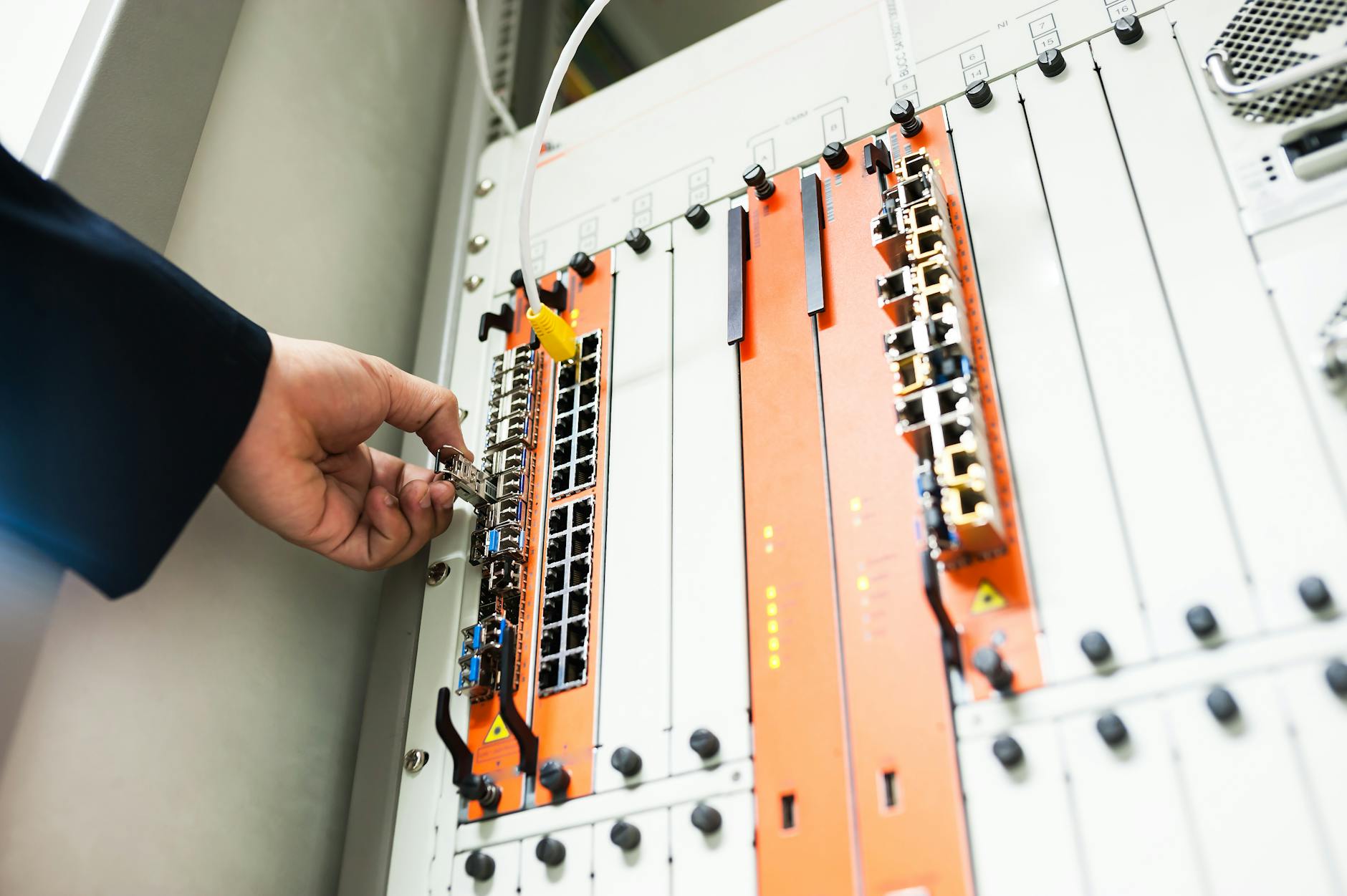
Photo by panumas nikhomkhai on Pexels
If you’ve ever wondered whether a simple restart router weekly could actually make your Wi‑Fi feel snappier, you’re not alone. Many home users assume that a router, once set up, will run flawlessly forever, but the reality is that the device’s software and hardware constantly juggle connections, memory, and firmware processes that can degrade performance over time. In this article we’ll unpack the technical reasons behind the speed boost, share real‑world examples, and give you a step‑by‑step plan to make weekly reboots part of your routine.
How Routers Manage Connections
Modern routers are essentially tiny computers. Every time a device joins your network—whether it’s a phone, laptop, smart TV, or IoT sensor—the router assigns it an IP address, creates a NAT table entry, and tracks the state of each TCP/UDP session. Over the course of a day, especially in busy households, the NAT table can swell to thousands of entries. While most routers allocate enough memory to handle typical loads, the table isn’t automatically purged when a device disconnects; stale entries linger until they time out, which can be anywhere from a few minutes to several hours.
This accumulation matters because the router must search through the table for each packet it forwards. As the table grows, lookup times increase marginally, adding latency that most users notice as “slow internet” or “buffering.” A weekly reboot clears the NAT table, forcing the router to rebuild it from scratch and restoring optimal lookup speeds.
Memory Leaks and Cache Buildup
Even though router firmware is designed for stability, it’s not immune to memory leaks—situations where allocated memory isn’t released properly after use. Leaks can stem from buggy third‑party plugins, misbehaving QoS (Quality of Service) algorithms, or even the router’s own DNS cache. Over days, these small leaks add up, consuming RAM that could otherwise be used for packet processing.
When RAM gets scarce, the router may start swapping data to its flash storage, which is significantly slower. This slowdown manifests as reduced throughput, higher ping, and occasional dropped connections. A quick power cycle forces the router to reset its memory allocation, flushing caches and reclaiming RAM, which translates directly into smoother, faster data flow.
Signal Interference and Firmware Refresh
Wireless performance isn’t just a software issue; physical factors like channel congestion and thermal throttling also play roles. Routers automatically select Wi‑Fi channels, but they may stick with a sub‑optimal channel for extended periods, especially if neighboring networks change their settings. Restarting the router triggers a fresh channel scan, often landing on a cleaner frequency with less interference.
Additionally, many routers apply firmware updates in the background. Some updates require a reboot to take effect, but if the device never restarts, the new code stays dormant. A scheduled weekly reboot ensures that any pending patches—security fixes, performance tweaks, or bug resolves—are activated promptly, keeping the router operating at peak efficiency.
Practical Steps to Schedule Weekly Restarts
Turning theory into habit is easy with a few simple tools:
- Use the router’s built‑in scheduler: Many modern routers (e.g., ASUS, Netgear, TP‑Link) include a “Reboot Schedule” option in the admin UI. Set it for a low‑traffic time, such as 3 AM on Sundays.
- Smart plugs: Plug the router into a Wi‑Fi‑controlled smart plug (like TP‑Link Kasa). Create a routine that cuts power for 30 seconds once a week.
- Automation scripts: For tech‑savvy users, a simple cron job on a Raspberry Pi can send a reboot command via SSH:
ssh admin@router "reboot". - Manual reminder: If you prefer a hands‑on approach, set a recurring calendar reminder with a one‑click “Power Cycle” checklist.
After the reboot, give the router a minute to re‑establish its DHCP leases and Wi‑Fi beacons. Test your speed using a tool like Speedtest.net; you’ll often see a 5‑15% improvement compared to the pre‑reboot baseline.
Frequently Asked Questions
1. Will rebooting my router erase my Wi‑Fi settings?
No. A standard power cycle only clears volatile memory; all configuration stored in flash (SSID, passwords, port forwards) remains intact. Only a factory reset wipes those settings.
2. How often is “weekly” too often?
For most households, once a week strikes a balance between performance gains and convenience. Power‑hungry users with many IoT devices might benefit from a bi‑weekly reboot, while a stable network with minimal traffic could stretch to a month.
3. Can frequent reboots damage my router?
Routers are built to handle regular power cycles. Modern power supplies include surge protection, and a brief off‑state (under 30 seconds) won’t wear out components. Just avoid unplugging during firmware updates.
Found this helpful? Share it with your tech-savvy friends! 💻
