
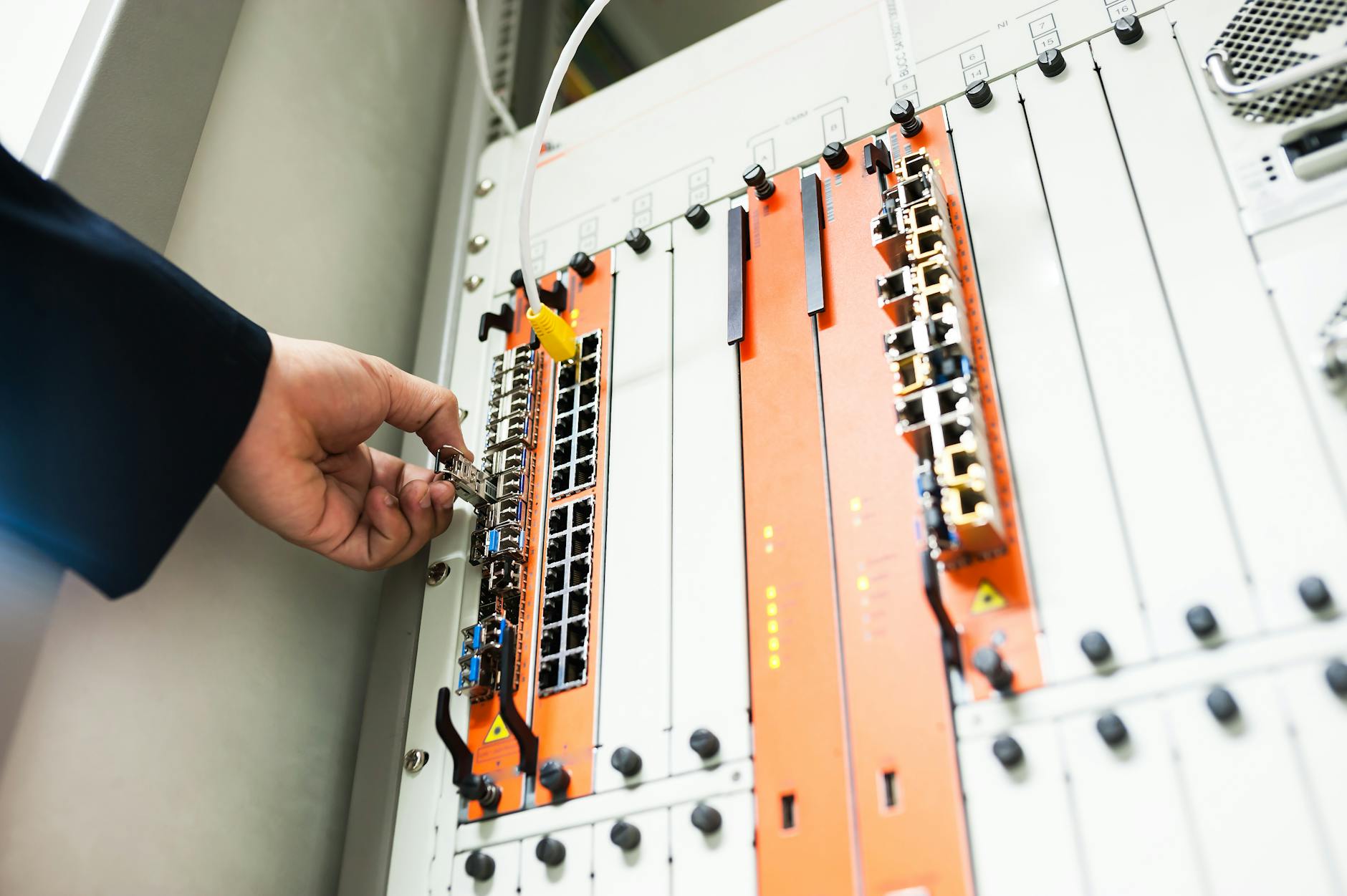
Photo by panumas nikhomkhai on Pexels
Why Restarting Your Router Weekly Makes Your Internet Faster
If you’ve ever wondered whether a simple restart router weekly could actually speed up your home network, you’re not alone. In a world where streaming 4K video, cloud gaming, and video‑conferencing dominate our daily bandwidth, many users experience slowdowns that feel inexplicable. The good news is that a weekly power‑cycle can clear out hidden bottlenecks, refresh firmware, and restore optimal performance without buying new hardware.
1. Memory Leaks and Buffer Bloat: The Silent Speed Killers
Modern routers run complex operating systems—often a stripped‑down Linux kernel with dozens of services handling NAT, DHCP, QoS, and security. Over time, some of these services develop memory leaks, meaning they consume RAM without releasing it. When RAM fills up, the router starts swapping data to flash storage, which is dramatically slower. This results in increased latency and jitter, especially noticeable during peak usage.
Real‑world example: A family of four in Austin reported that after a month of heavy streaming, their ping to a local game server jumped from 20 ms to 80 ms. A simple power‑off for 30 seconds cleared the leak, and ping returned to sub‑30 ms levels.
Actionable insight: Set a recurring reminder on your phone or smart speaker to unplug the router for 30–60 seconds every Sunday night. This brief downtime lets the device reboot, releasing any stray memory and resetting internal buffers.
2. DHCP Table Bloat and Stale IP Assignments
Every device that connects to your network receives an IP address from the router’s DHCP server. Over weeks and months, the DHCP lease table can become cluttered with entries for devices that no longer exist (old smartphones, decommissioned laptops, IoT gadgets). A bloated table forces the router to spend extra CPU cycles searching for free addresses, slowing down the allocation process for new devices.
Real‑world example: In a small office in Seattle, the IT manager noticed that new conference‑room tablets took up to 45 seconds to obtain an IP address after a firmware update. After a weekly router reboot, the DHCP table was cleared, and the same tablets connected in under 5 seconds.
Actionable insight: After each reboot, verify that critical devices (your work laptop, smart TV, and voice assistant) reconnect automatically. If they don’t, assign them static IPs within the router’s reserved range to avoid future delays.
3. Firmware Refresh and Security Patch Activation
Manufacturers regularly release firmware updates that fix bugs, improve throughput, and tighten security. However, many routers only apply these patches after a full reboot. If you’ve enabled “auto‑update” but never restart the device, the router may be running outdated code that throttles performance.
Real‑world example: A tech blogger in Berlin discovered that his Netgear Nighthawk was still using a 2019 Wi‑Fi 5 driver, despite an auto‑update notification. After a weekly restart, the router applied the latest Wi‑Fi 6 firmware, boosting his download speeds from 250 Mbps to 450 Mbps on the same ISP plan.
Actionable insight: Log into your router’s admin panel once a month, check the firmware version, and enable auto‑restart after updates if the option exists. If not, schedule a manual restart to ensure the newest code is active.
4. Reducing Interference from Rogue Processes and IoT Devices
Many households now host dozens of IoT devices—smart bulbs, cameras, thermostats—that constantly ping the router. Some of these devices can misbehave, opening persistent connections that hog bandwidth or cause the router to prioritize low‑priority traffic. A weekly reboot clears these lingering sessions, forcing all devices to renegotiate fresh, clean connections.
Real‑world example: A family in Toronto noticed that their smart fridge was constantly syncing data, causing their Wi‑Fi speed test to dip below 10 Mbps during dinner. After a weekly router restart, the fridge re‑established a proper, low‑frequency sync schedule, and their speed test returned to 75 Mbps.
Actionable insight: After each reboot, use a network monitoring app (such as Fing or GlassWire) to identify any devices with unusually high traffic. Consider updating their firmware or isolating them on a guest network to prevent future interference.
Frequently Asked Questions
Q1: How long should I leave the router powered off during the weekly restart?
A: Most consumer routers clear their volatile memory within 30 seconds. To be safe, unplug the unit for 45–60 seconds, then plug it back in. This ensures that capacitors discharge fully and the boot process starts from a clean state.
Q2: Will a weekly restart affect my smart home automations?
A: It can, but the impact is minimal if you plan the reboot during low‑traffic periods (late night or early morning). Most smart devices automatically reconnect within a minute. For critical automations (e.g., security cameras), consider placing them on a separate mesh node that stays powered.
Q3: Can I automate the weekly restart without unplugging the router?
A: Many modern routers include a “Scheduled Reboot” feature in the admin dashboard. If your model lacks this option, a smart plug (like TP-Link Kasa) can be programmed to cut power on a set schedule, effectively achieving the same result.
Found this helpful? Share it with your tech-savvy friends! 💻
