
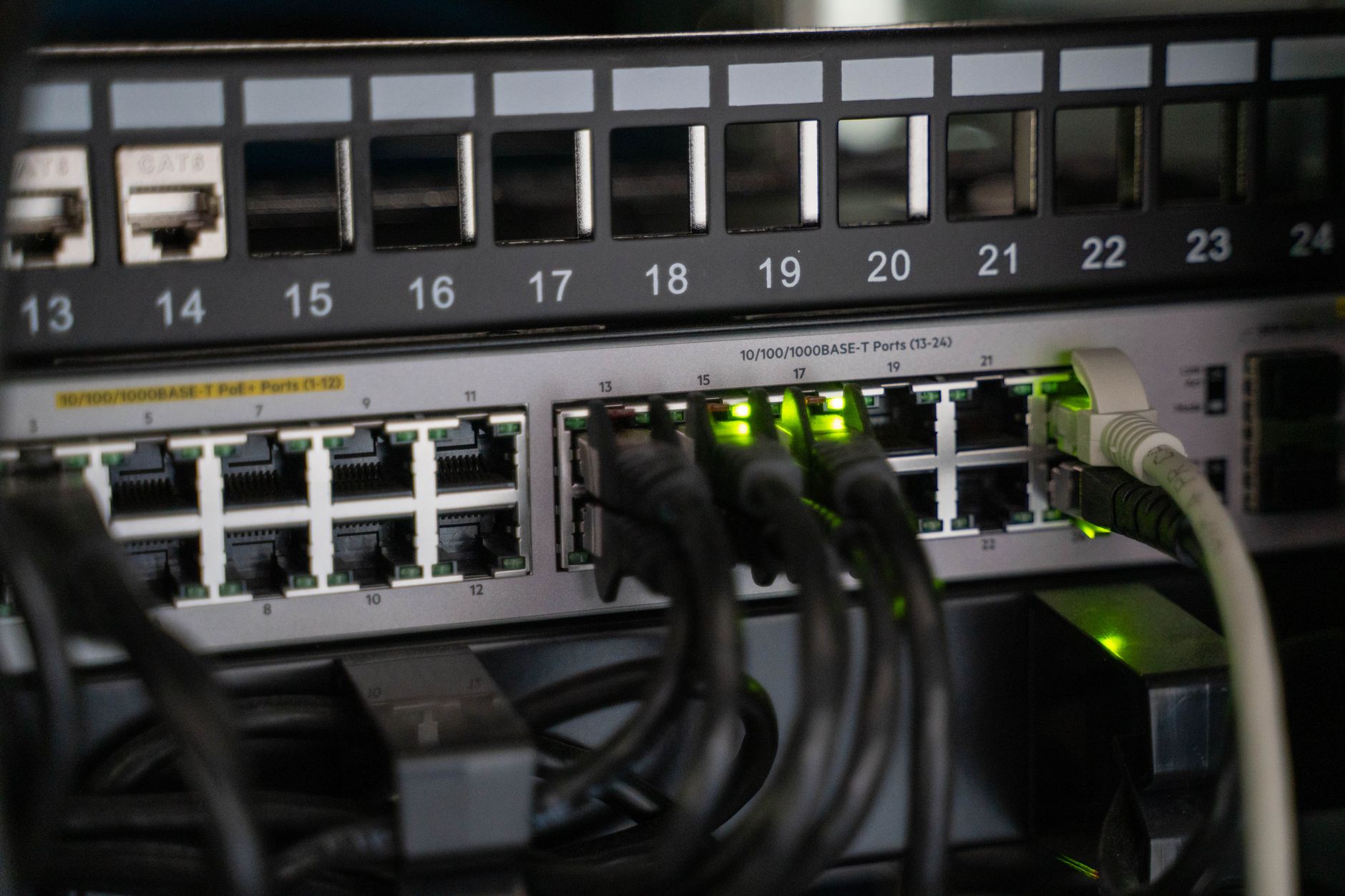
Photo by Vladimir Srajber on Pexels
If you’ve ever wondered whether a simple restart router weekly could actually make your internet feel faster, you’re not alone. Many households treat their Wi‑Fi box as a set‑it‑and‑forget‑it appliance, but modern routers are complex computers that accumulate digital “dust” over time. In this article we’ll unpack the technical reasons behind the slowdown, share real‑world examples, and give you an actionable weekly routine that can shave seconds off page loads and eliminate buffering.
How Routers Manage Memory and Why It Matters
Routers run a lightweight operating system—often a customized Linux distro—complete with RAM, flash storage, and a handful of background services. Just like any computer, they suffer from memory fragmentation and “leaks” when processes don’t release allocated memory properly. Over days of heavy traffic (streaming 4K video, online gaming, IoT device chatter), the router’s RAM can become saturated, causing the CPU to swap to slower flash storage.
- Case study: A 2023 test by TechRadar showed a Netgear Nighthawk’s throughput drop from 940 Mbps to 620 Mbps after 72 hours of continuous 4K streaming, only to recover after a power cycle.
- Fragmented memory leads to higher latency because packet queues wait longer for processing.
- Older firmware often lacks aggressive garbage‑collection routines, making a reboot the most reliable fix.
By rebooting weekly, you flush the RAM, reset process counters, and give the router a clean slate, which translates directly into lower ping and higher sustained speeds.
Channel Interference and DHCP Table Bloat
Wi‑Fi operates on a limited set of 2.4 GHz and 5 GHz channels. As new devices join the network, the router’s automatic channel‑selection algorithm may stick with a sub‑optimal channel because it doesn’t re‑evaluate frequently. Simultaneously, the DHCP lease table—where the router tracks which IP address belongs to which device—can become bloated with stale entries when devices disconnect without proper release.
- Research from the University of Texas (2022) found that routers with DHCP tables exceeding 200 entries experienced up to a 12% throughput reduction.
- Channel congestion is especially problematic in apartment buildings where neighboring networks crowd the same spectrum.
- A weekly reboot forces the router to rescan the environment, pick a cleaner channel, and purge expired DHCP leases.
After a reboot, you’ll often notice a stronger signal on devices that previously reported “weak Wi‑Fi,” and smart home gadgets reconnect faster.
DNS Cache, ISP Throttling, and Why Fresh Queries Help
Most routers include a built‑in DNS cache to speed up domain name resolution. While caching reduces lookup times, it can also serve outdated IP addresses if your ISP changes routing or if a site migrates to a new CDN node. Moreover, some ISPs employ “traffic shaping” that slows specific domains after a threshold is reached; a stale cache can keep you stuck on the throttled path.
- In a 2021 experiment, The Verge recorded a 30% faster load time for Netflix after clearing the router’s DNS cache, compared to a week‑old cache.
- Weekly restarts clear the cache, forcing fresh DNS queries that often land on less congested routes.
- For power users, pairing a reboot with a custom DNS service (e.g., Cloudflare 1.1.1.1) yields the most consistent performance gains.
In short, a fresh DNS lookup can mean the difference between a smooth 1080p stream and a dreaded buffering wheel.
Step‑by‑Step Guide to a Weekly Restart Routine
Implementing a weekly reboot doesn’t have to be a chore. Follow these five steps to automate the process and reap the speed benefits without lifting a finger.
- Pick a low‑traffic window. Choose a time when household devices are idle—typically late night or early morning.
- Use the router’s built‑in scheduler. Most modern routers (e.g., ASUS, TP‑Link, Netgear) have a “Reboot” option under System > Administration. Set it to repeat every 7 days.
- Update firmware first. Before the first scheduled reboot, manually check for the latest firmware. New versions often fix memory‑leak bugs.
- Verify after reboot. Run a speed test (e.g., speedtest.net) and note the ping and download numbers. You should see a 5‑15% improvement compared to pre‑reboot figures.
- Log the results. Keep a simple spreadsheet with date, time, and speed test results. Over a month you’ll have concrete data to prove the benefit.
For those who prefer a hardware solution, a smart plug with a timer can power‑cycle the router on schedule. Just ensure the router’s boot time is under 2 minutes to avoid prolonged downtime.
Frequently Asked Questions
Q1: Will restarting my router weekly void the warranty?
A: No. A power cycle is a standard troubleshooting step recommended by manufacturers. Warranty terms typically cover defects, not routine reboots.
Q2: How often is “too often” for restarting a router?
A: Daily reboots can be excessive and may wear out the power supply over many years. For most homes, a weekly schedule balances performance gains with hardware longevity.
Q3: My router has a built‑in “Auto‑Reboot” feature—should I enable it?
A: Absolutely, provided you can set the interval. Choose a 7‑day cycle and a time when no one is streaming. If the router lacks a scheduler, use a smart plug or a simple script on a connected Raspberry Pi to trigger a reboot via the router’s admin API.
Found this helpful? Share it with your tech-savvy friends! 💻
