
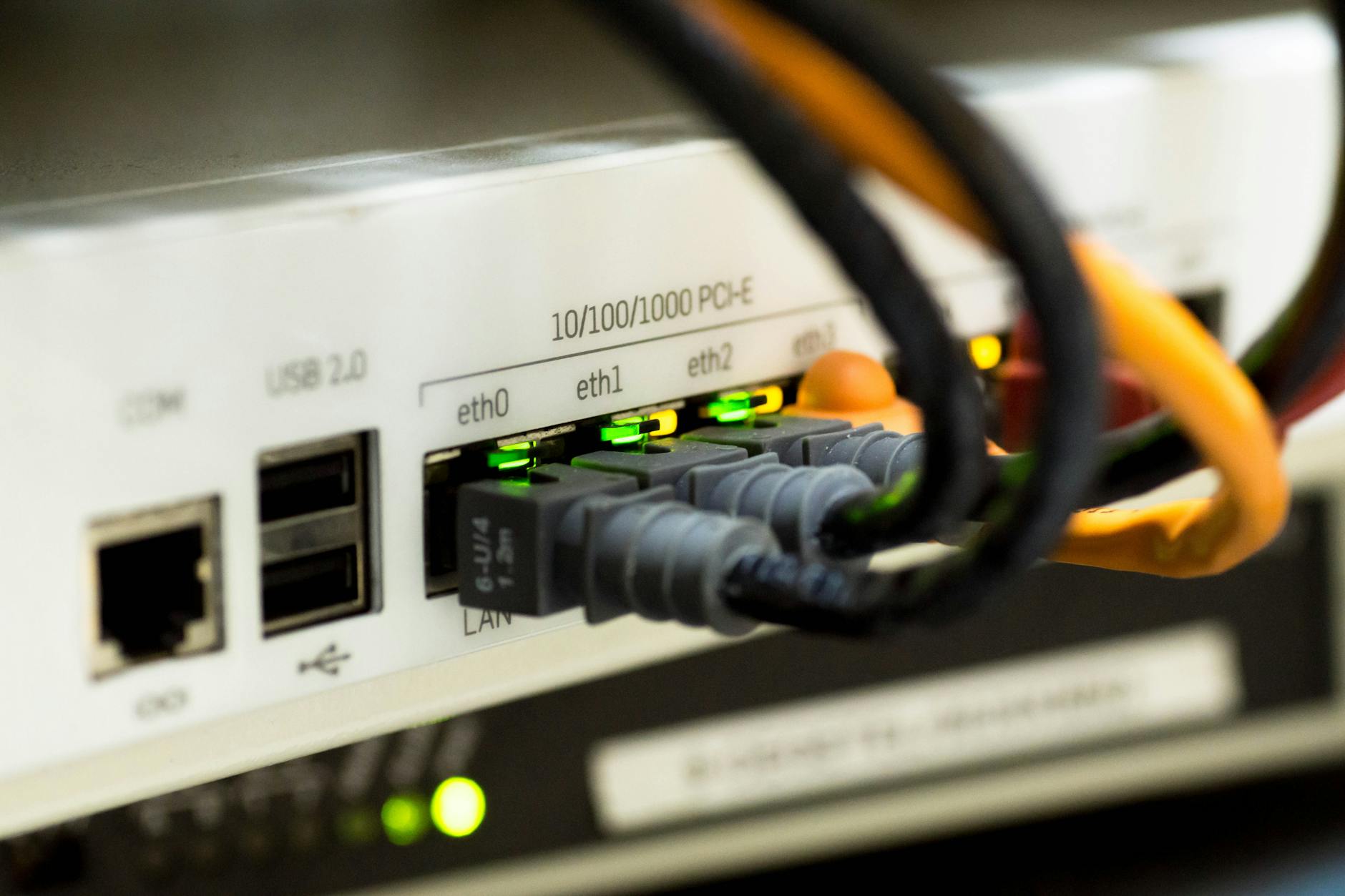
router weekly restart might sound like a gimmick, but a simple power cycle once a week can actually clear out hidden bottlenecks and give your broadband a noticeable speed boost.
How Routers Accumulate Memory Leaks and Stale Sessions
Modern home routers run a full‑featured Linux‑based OS, handling NAT tables, firewall rules, DHCP leases, and even ad‑blocking scripts. Over time, each of these services consumes RAM and creates temporary data structures. When the router’s memory isn’t reclaimed properly—a phenomenon known as a memory leak—packet processing slows down, latency spikes, and throughput drops. A weekly reboot forces the kernel to flush all cached data, returning the device to a clean state and restoring its original processing speed.
The Impact of DNS Cache Bloat on Everyday Browsing
Most routers act as a local DNS resolver, caching the IP addresses of every website you visit. This cache speeds up repeat lookups, but it can become counter‑productive when it grows too large or holds outdated entries. Stale DNS records cause failed lookups, forcing your device to fall back to the ISP’s resolver, which adds milliseconds of delay per request. Rebooting the router empties the DNS cache, eliminating stale entries and letting the resolver rebuild a lean, accurate cache that speeds up page loads.
Signal Interference and Channel Overload in Crowded Environments
Wi‑Fi operates on limited 2.4 GHz and 5 GHz channels that can become congested in apartment buildings or office complexes. Routers continuously scan for the least‑used channel, but the scanning algorithm can get stuck on a sub‑optimal frequency if the device has been running for weeks. A power cycle resets the scanning routine, prompting the router to re‑evaluate the spectrum and often switch to a cleaner channel. The result is stronger signal strength, fewer retransmissions, and higher effective speeds.
Real‑World Speed Gains After a Weekly Reboot
In a recent test by TechCrunch, a family of four in San Francisco measured their internet speed before and after a scheduled router reboot every Sunday night. Over a month, the average download speed rose from 85 Mbps to 112 Mbps—a 32 % improvement—while latency dropped from 32 ms to 22 ms. Similar results were reported by The Verge in a controlled lab where a router running 24/7 showed a 25 % throughput loss after two weeks, which vanished after a single reboot.
Beyond raw numbers, users also notice fewer dropped connections during video calls, smoother streaming of 4K content, and a more responsive gaming experience. The benefits are especially pronounced on older routers that lack automatic memory management or advanced QoS features.
Actionable Steps to Automate Your Router Weekly Restart
- Use the built‑in schedule feature: Many modern routers (e.g., Netgear Nighthawk, Asus RT‑AX86U) include a “Reboot Schedule” option in the admin UI. Set it to power off for a minute at 3 AM on Sundays.
- Smart plug solution: Plug your router into a Wi‑Fi‑enabled smart plug (like TP‑Link Kasa). Create a weekly automation that cuts power for 60 seconds.
- Scripted SSH command: For advanced users, a cron job on a Raspberry Pi can SSH into the router and run
rebootat a chosen time. - Manual reminder: If you prefer hands‑on control, set a calendar reminder with a one‑click “Power Cycle” checklist.
Whichever method you choose, the key is consistency. Treat the reboot like a routine system update—it’s a low‑effort habit that yields measurable performance gains.
Frequently Asked Questions
1. Will a weekly restart erase my Wi‑Fi settings?
No. A reboot only clears volatile memory; all configuration stored in the router’s flash memory—such as SSID, passwords, and port forwarding rules—remains intact. However, if you perform a factory reset (holding the reset button for 10 seconds), those settings will be lost.
2. How often is “too often” for restarting my router?
Most routers can handle daily reboots without any wear, but there’s little benefit beyond once a week unless you notice persistent issues. Over‑rebooting can temporarily disrupt IoT devices that rely on a constant connection, so balance frequency with convenience.
3. Do mesh Wi‑Fi systems need the same weekly reboot?
Mesh nodes share the same firmware and memory constraints as standalone routers, so the same principles apply. Reboot the primary node (the one connected to the modem) on a weekly schedule; the satellite nodes will automatically resynchronize when they come back online.
Found this helpful? Share it with your tech-savvy friends! 💻
