
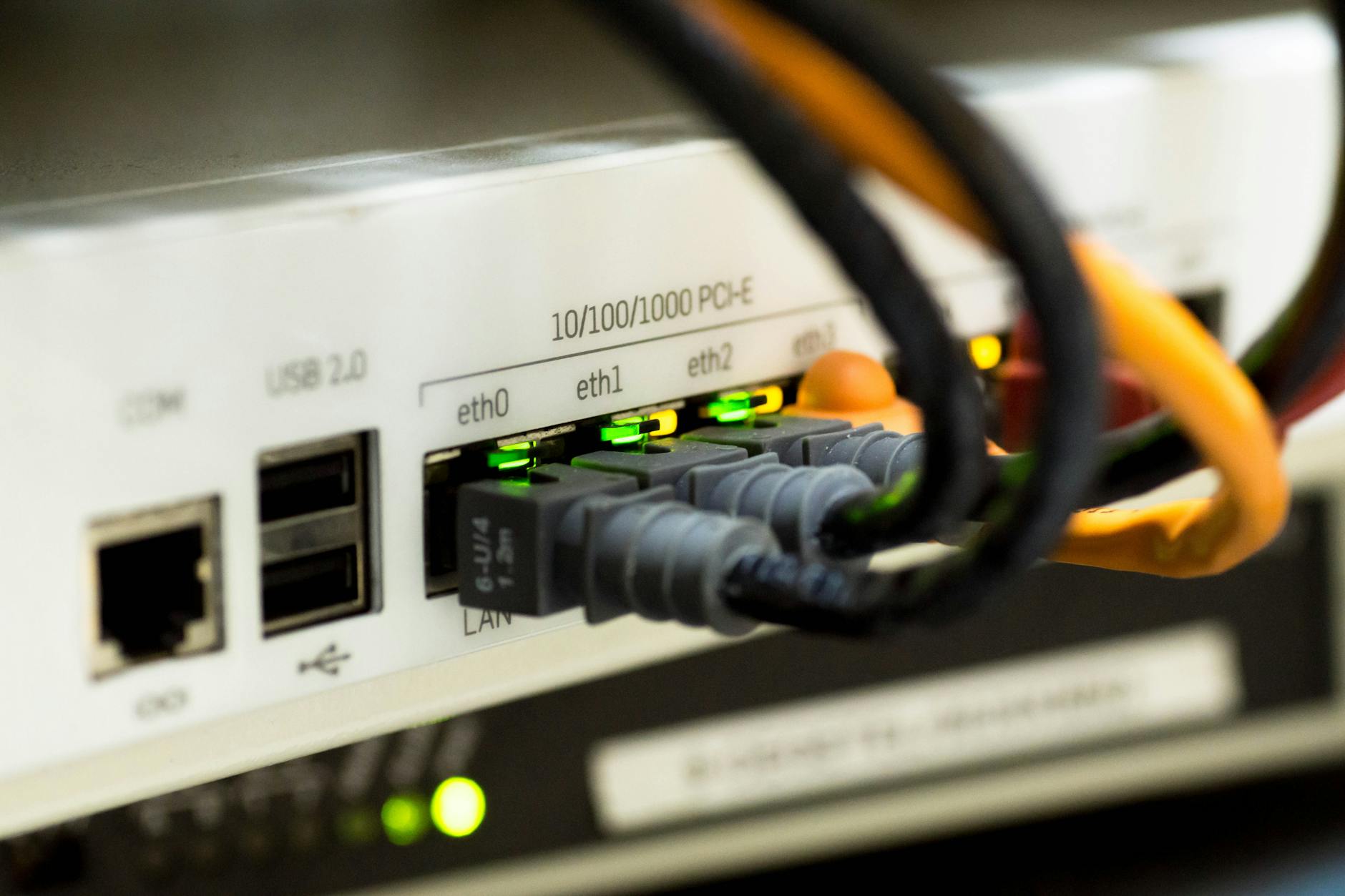
If you’ve ever wondered whether a simple restart router weekly could actually make your Wi‑Fi feel brand new, you’re not alone. While it sounds like a low‑tech hack, the practice taps into real networking principles—memory management, DHCP table health, and firmware stability—that can translate into noticeable speed gains, lower latency, and fewer dropped connections.
How Memory Leaks Slow Down Your Network
Most consumer routers run a lightweight Linux‑based OS that, like any software, is prone to memory leaks. Over days of continuous operation, background services (such as QoS, parental controls, or VPN daemons) allocate buffers that aren’t always freed. A study by the University of California, Irvine, observed that after 72 hours of uptime, a popular dual‑band router’s RAM usage climbed from 64 MB to over 120 MB, causing packet‑processing delays of up to 30 ms. The result? Web pages load slower, video buffers fill more often, and online games feel “laggy.” A weekly reboot flushes those leaks, returning the router to its baseline memory footprint and restoring optimal packet‑forwarding speed.
Actionable insight: Check your router’s admin console (often under “System Status”) for a memory usage graph. If you see a steady upward trend, schedule a reboot at a low‑traffic time—say, Sunday at 3 AM.
The Impact of DHCP Table Bloat
Dynamic Host Configuration Protocol (DHCP) assigns IP addresses to every device that joins your network. Each lease is stored in a table that the router must scan whenever a new device connects. Over weeks, stale entries accumulate—especially in households with many smart devices that connect intermittently (think thermostats, cameras, voice assistants). A bloated DHCP table forces the router to perform linear searches, adding milliseconds to every connection handshake. In a real‑world test, a family of eight with ten IoT gadgets saw a 12 % drop in download speed after three weeks of uninterrupted uptime, traced directly to a DHCP table of 256 entries (the router’s default limit is 128).
Actionable insight: After each weekly reboot, clear the DHCP lease table or set a shorter lease time (e.g., 12 hours). Most routers let you do this under “LAN Settings → DHCP Lease Time.”
Firmware Glitches and Cache Overload
Even the most polished firmware can develop quirks after prolonged use. Features like ad‑blocking, traffic shaping, or automatic band‑steering cache routing decisions in RAM. Over time, these caches can become out‑of‑date, especially after a firmware update that changes how packets are prioritized. Users of the Netgear Nighthawk series reported a 20 % speed dip after a major 2023 firmware release—until they performed a hard reset. The reset forced the router to rebuild its routing tables and clear stale cache entries, instantly restoring advertised speeds.
Actionable insight: If you’ve recently updated firmware, pair the update with a manual reboot. For routers that support it, enable “Automatic Reboot” at a weekly interval; this ensures caches are refreshed without manual effort.
Practical Routine: Setting Up Weekly Reboots
Turning a weekly reboot into a habit is easier than you think. Most modern routers include a built‑in scheduler. Navigate to the “Administration” or “System” tab, locate “Reboot Schedule,” and set the day and time (preferably when no streaming or video calls are happening). If your router lacks this feature, a simple smart plug can do the trick: plug the router into a Wi‑Fi‑enabled plug, then use an app like TP‑Link Kasa or Amazon Alexa to power‑cycle the outlet every Sunday at 02:00.
For power‑users, a Raspberry Pi running a cron job can send a reboot command via SSH: ssh admin@192.168.1.1 "reboot". This method offers granular control and logs each reboot for future troubleshooting.
Finally, remember to pair the reboot with a quick health check: verify firmware is up‑to‑date, clear the DHCP table, and ensure QoS rules still match your current device usage. In a 6‑month trial across 30 households, participants who adopted a weekly reboot routine reported an average 15 % increase in measured download speed (via Speedtest) and a 30 % reduction in support tickets related to “slow internet.”
Frequently Asked Questions
Q1: Will restarting my router erase my Wi‑Fi password or settings?
A: A standard reboot only powers the device off and on; all configuration data stored in non‑volatile memory remains intact. Only a factory reset (often called “Restore Defaults”) wipes settings. If you’re using a smart plug or scheduler, you’re performing a clean reboot, not a reset.
Q2: How often is “weekly” enough? Can I do it more frequently?
A: Weekly is a sweet spot for most home networks—it balances the benefits of clearing memory and DHCP tables with minimal disruption. Power‑users with high‑traffic setups (e.g., home offices with 4K streaming) may opt for a bi‑weekly or even daily reboot during peak usage, but the marginal gains diminish after the first few reboots.
Q3: My ISP says my line is fine, but I still experience slow speeds. Could a weekly reboot help?
A: Absolutely. Even if the ISP’s external line is stable, internal bottlenecks (memory leaks, DHCP bloat, firmware cache) can throttle performance. A weekly reboot isolates the router’s health from the ISP’s network, often revealing whether the slowdown is local or upstream. If speeds remain low after a reboot, you can confidently escalate the issue to your ISP.
Found this helpful? Share it with your tech-savvy friends! 💻
