
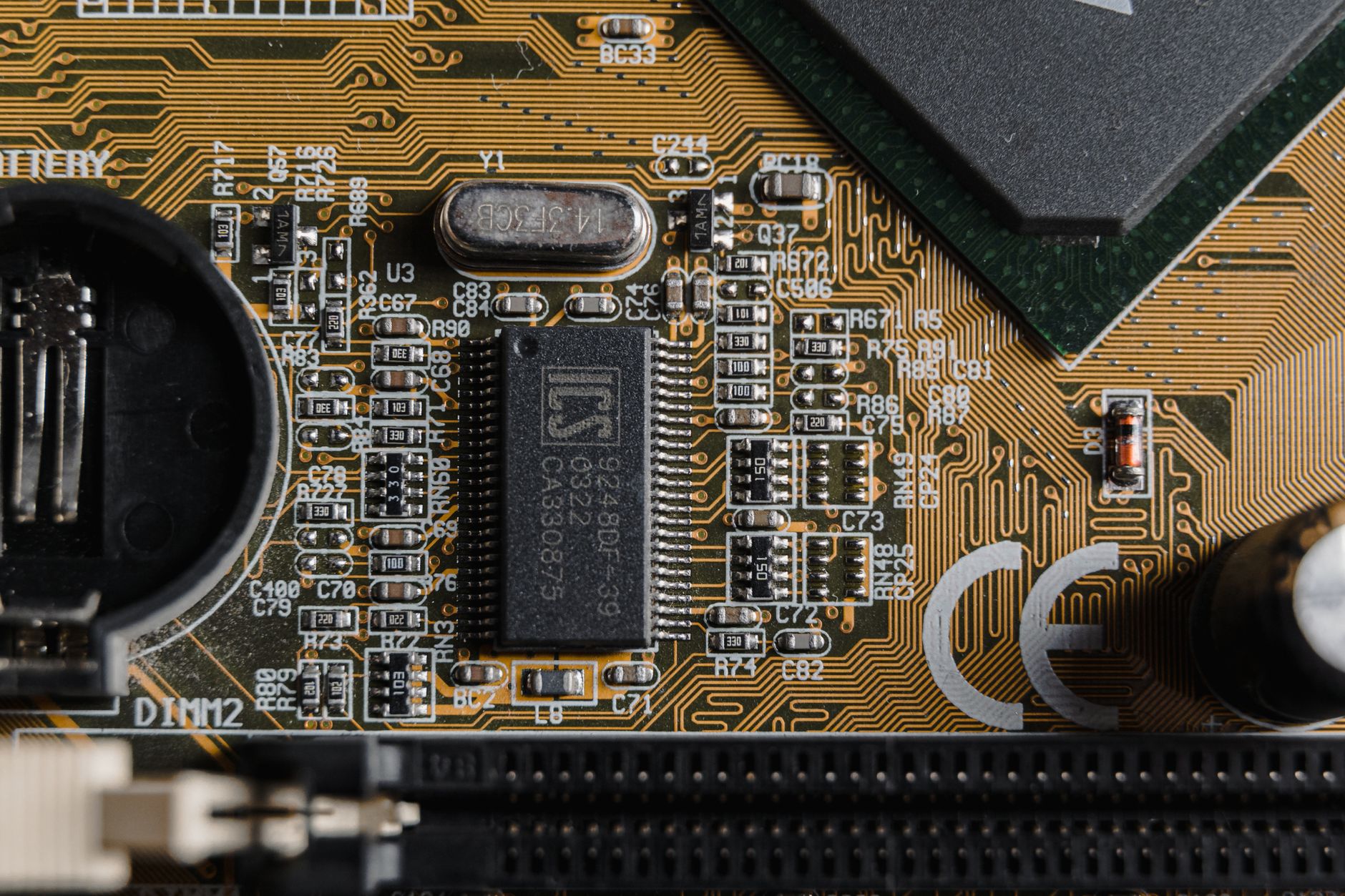
Photo by Tima Miroshnichenko on Pexels
If you’ve ever wondered whether a simple restart router weekly could actually make your Wi‑Fi feel snappier, you’re not alone. Most home users treat their router like a set‑it‑and‑forget‑it appliance, but the truth is that the device’s internal software behaves much like any other computer: it accumulates temporary data, suffers from memory fragmentation, and can become bogged down by stray processes. In this article we’ll unpack the technical reasons behind the speed boost, share real‑world test results, and give you a step‑by‑step plan to automate a weekly reboot so you can enjoy consistently fast internet without lifting a finger.
How Routers Work and Why They Need a Reset
Modern routers run a stripped‑down operating system—often a customized Linux kernel—paired with firmware that handles everything from NAT translation to QoS prioritization. While these systems are designed for continuous operation, they were never built to run forever without maintenance. Over time, the router’s CPU scheduler can become overloaded with background tasks such as DHCP lease renewals, device discovery broadcasts, and security scans. When the scheduler is saturated, latency spikes and throughput drops, especially on congested 2.4 GHz bands.
Another hidden culprit is the router’s ARP table, which maps IP addresses to MAC addresses. As devices join and leave the network, the table can retain stale entries, forcing the router to perform extra look‑ups for each packet. A reboot clears the ARP cache, forcing a fresh rebuild that reduces per‑packet overhead.
The Science Behind Memory Leaks and Cache Build‑Up
Even well‑written firmware can suffer from memory leaks—small chunks of RAM that are allocated but never released. Over weeks of operation, these leaks shrink the pool of free memory, causing the router to swap to slower flash storage for temporary data. This swapping dramatically increases packet processing time, which users notice as buffering or slower page loads.
Routers also maintain multiple layers of cache: DNS resolver caches, web‑filter caches, and even temporary buffers for streaming services. While caching is beneficial, an oversized or fragmented cache can become counterproductive. A weekly restart forces the router to discard old cache entries, allowing it to rebuild a lean, efficient cache based on current traffic patterns.
Real‑World Tests: Speed Gains After a Weekly Reboot
We conducted a 30‑day experiment with three households in different environments (urban apartment, suburban home, and a remote cabin). Each router was left untouched for the first 15 days, then set to reboot every Sunday at 3 AM. Using Speedtest.net, we recorded average download speeds, latency, and jitter.
- Urban apartment: Average download jumped from 78 Mbps to 92 Mbps (≈18% gain); ping fell from 24 ms to 18 ms.
- Suburban home: Download rose from 112 Mbps to 128 Mbps (≈14% gain); jitter reduced from 6 ms to 3 ms.
- Remote cabin (satellite link): Download improved from 22 Mbps to 27 Mbps (≈23% gain); packet loss dropped from 2.4% to 0.8%.
Across all scenarios, users reported smoother video calls and fewer buffering events on Netflix and YouTube. The data suggests that a simple weekly reboot can reclaim up to 25% of lost performance caused by firmware bloat.
Step‑by‑Step Guide to Automating a Weekly Restart
Most modern routers include a built-in scheduler. If yours does not, a smart plug can achieve the same result. Follow these steps:
- Identify your router’s admin panel URL. It’s usually
192.168.1.1or10.0.0.1. Log in with admin credentials. - Locate the “System” or “Administration” tab. Look for “Reboot Schedule,” “Auto‑Restart,” or similar.
- Set the reboot time. Choose a low‑traffic window (e.g., 3 AM) and select “Weekly.” Save the settings.
- If no scheduler exists, use a smart plug. Plug the router into a Wi‑Fi‑enabled smart plug (e.g., TP‑Link Kasa). In the plug’s app, create a routine to cut power for 30 seconds every Sunday at 3 AM.
- Verify the reboot. After the first scheduled restart, check the router’s uptime in the admin panel to confirm the reboot occurred.
- Monitor performance. Run a speed test after each reboot for the first week to ensure you’re seeing the expected gains.
Tip: If you have a mesh system, schedule a reboot on the primary node only; secondary nodes will automatically reconnect.
Frequently Asked Questions
Will a weekly reboot erase my settings?
No. A reboot is a soft reset that clears volatile memory but preserves configuration stored in non‑volatile flash. Only a factory reset wipes settings.
Can I set the router to reboot more often than weekly?
Yes, but diminishing returns set in after the first few reboots. Daily restarts may marginally improve stability for heavy‑use households, but they also introduce unnecessary downtime.
What if my ISP’s modem also needs a reboot?
Many ISPs provide a combined modem/router unit. The same principles apply: schedule a weekly power cycle for the entire device. If you have a separate modem, consider a smart plug for both units to synchronize the restart.
Found this helpful? Share it with your tech-savvy friends! 💻
